
Welcome To Your Dashboard
How To
Add a New Post
Step 1: Access the Dashboard
Once logged in, you’ll be directed to the WordPress dashboard. This is the control center for managing your website.
Step 2: Navigate to the Posts Section
On the left-hand sidebar of the dashboard, you’ll see a menu. Hover over or click on the “Posts” option.
Step 3: Click on "Add New"
After clicking on “Posts,” you’ll see a submenu. Click on the “Add New” option.
Step 4: Enter Post Title and Content
You’ll be directed to the post editor. Here, you can enter the title of your post in the designated field at the top. Below that, you can add your content using the visual editor. Write your post, add images, format text, and make any other desired adjustments.
Step 5: Add Categories and Tags (Optional)
On the right-hand side of the editor, you’ll find options to add categories and tags to your post. This helps organize your content and makes it easier for visitors to find related posts.
Step 6: Set Featured Image
Below the categories and tags section, you’ll see an option to set a featured image for your post. Click on “Set featured image” and upload/select an image from your media library.
Step 7: Publish Your Post
Once you’re satisfied with your post, click on the “Publish” button located on the right-hand side of the editor. If you’re not ready to publish immediately, you can schedule the post to be published at a later date/time using the “Publish” options.
Step 8: Congratulations!
Your new post is now live on your WordPress website.
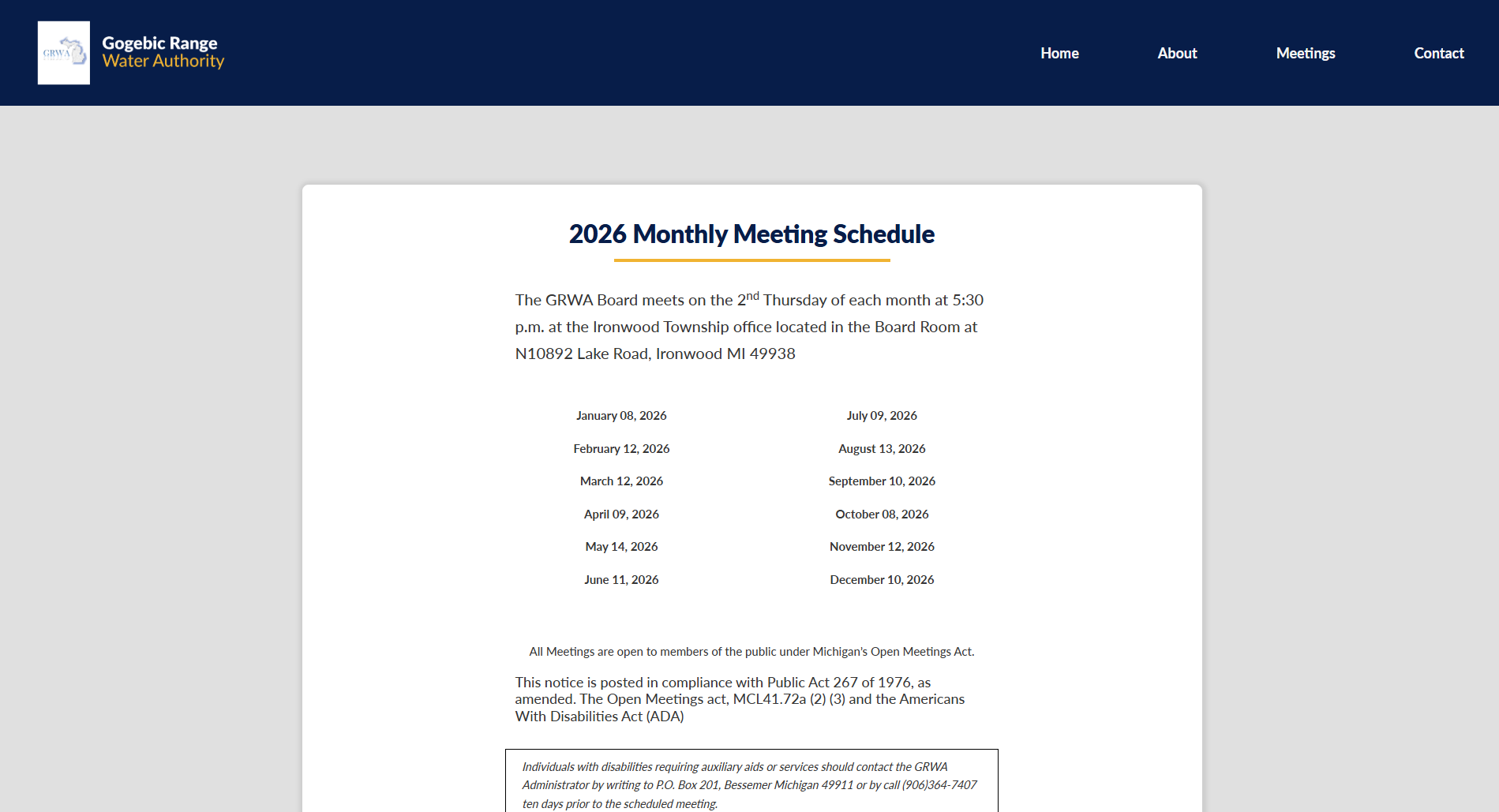
Add Meeting Dates
Step 1: Access the Dashboard
Once logged in, you’ll be directed to the WordPress dashboard. This is the control center for managing your website.
Step 2: Navigate to the Meeting Dates
On the left-hand side of the dashboard, locate and click on the “Meeting Dates” option.
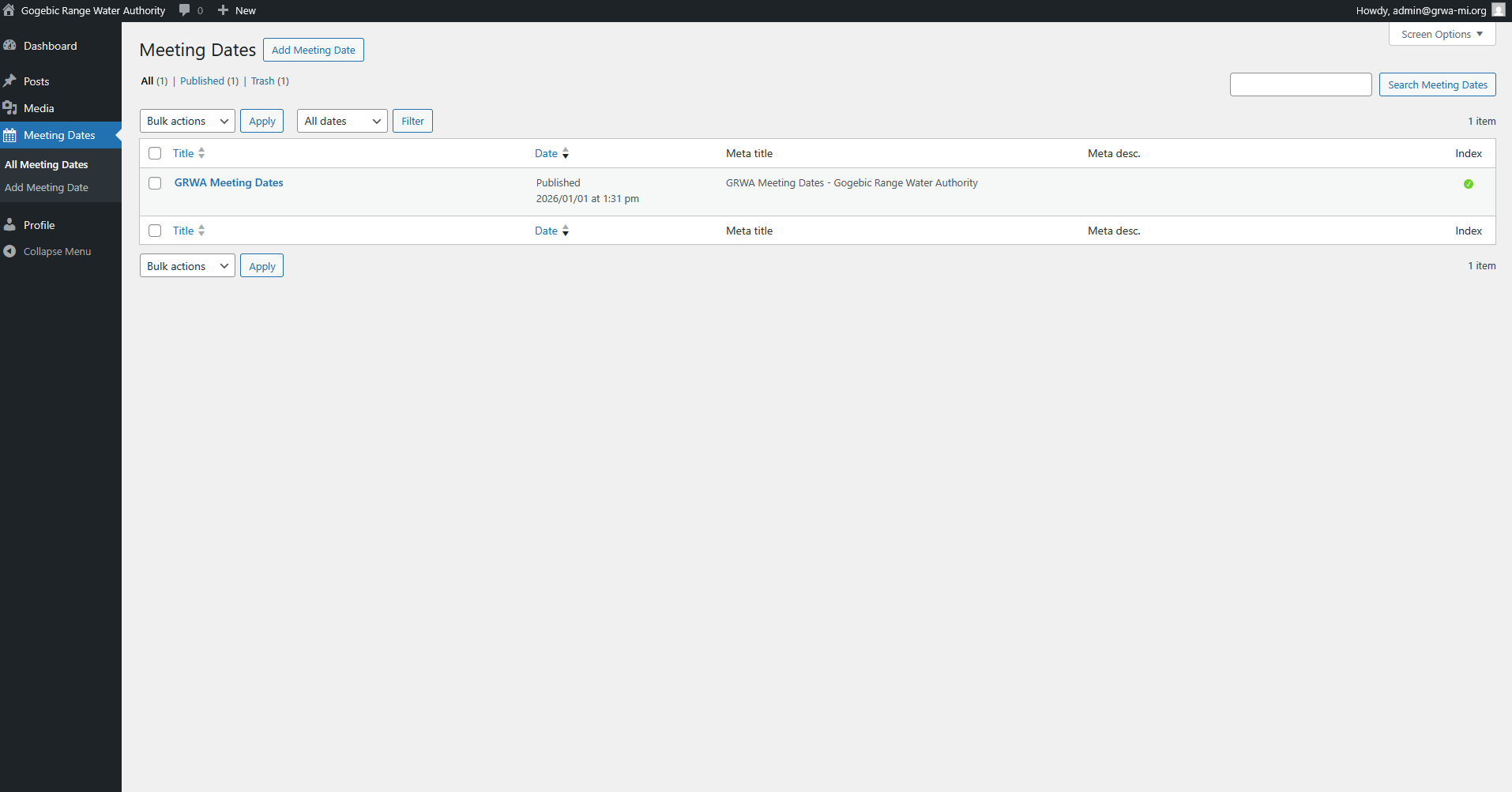
Step 3: Click on "GRWA Meeting Dates"
Once you’ve clicked on “GRWA Meeting Dates,” a submenu will appear with the title “Meeting dates.” If you don’t see these rows with dates in it, click the “Meeting Dates” tab towards the bottom to expand it.
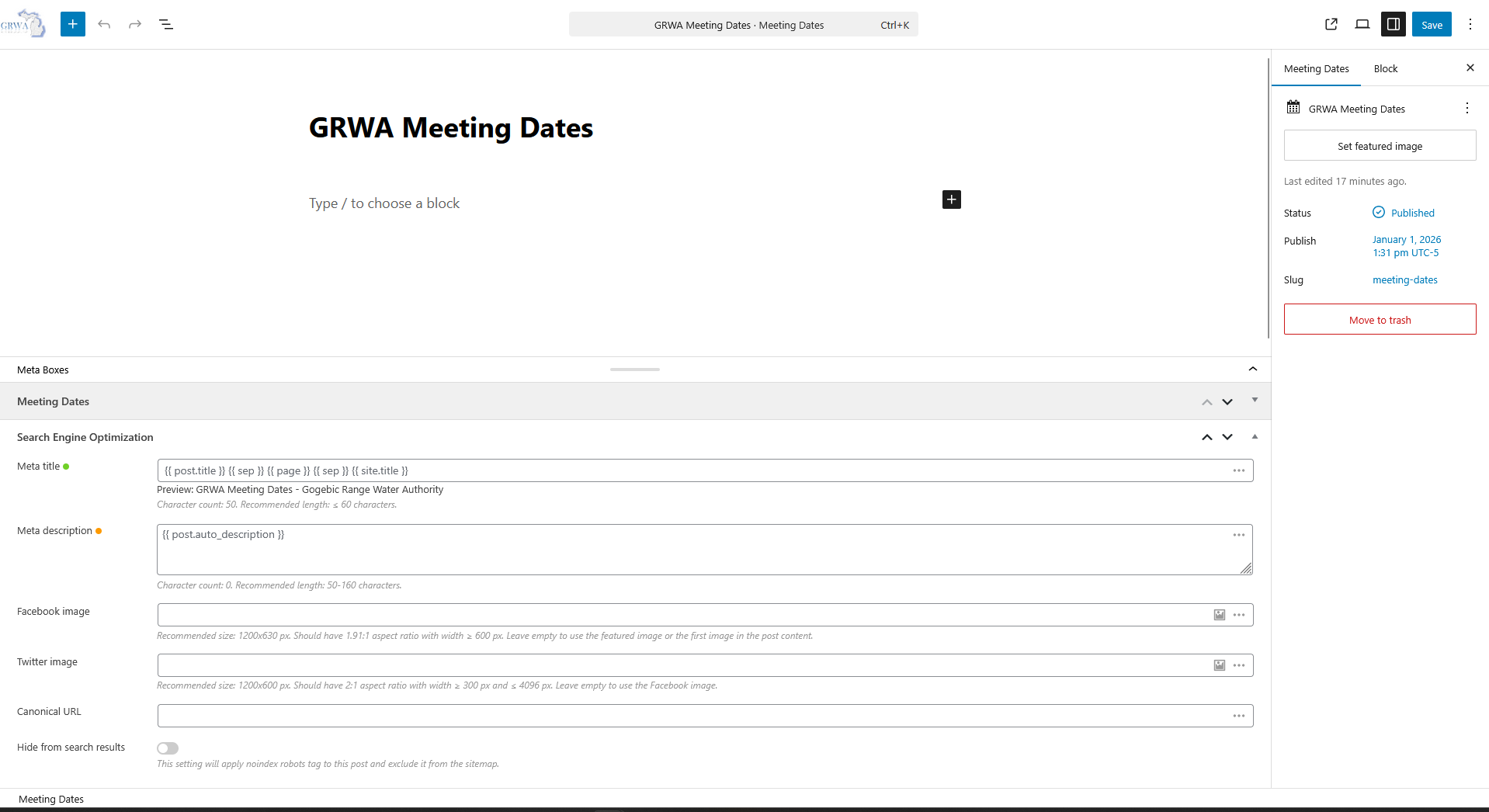
Step 4: Add A Row
You’ll now have the option to either change a date from the existing list with the date picker or “Add Row” to add a new date to the list.
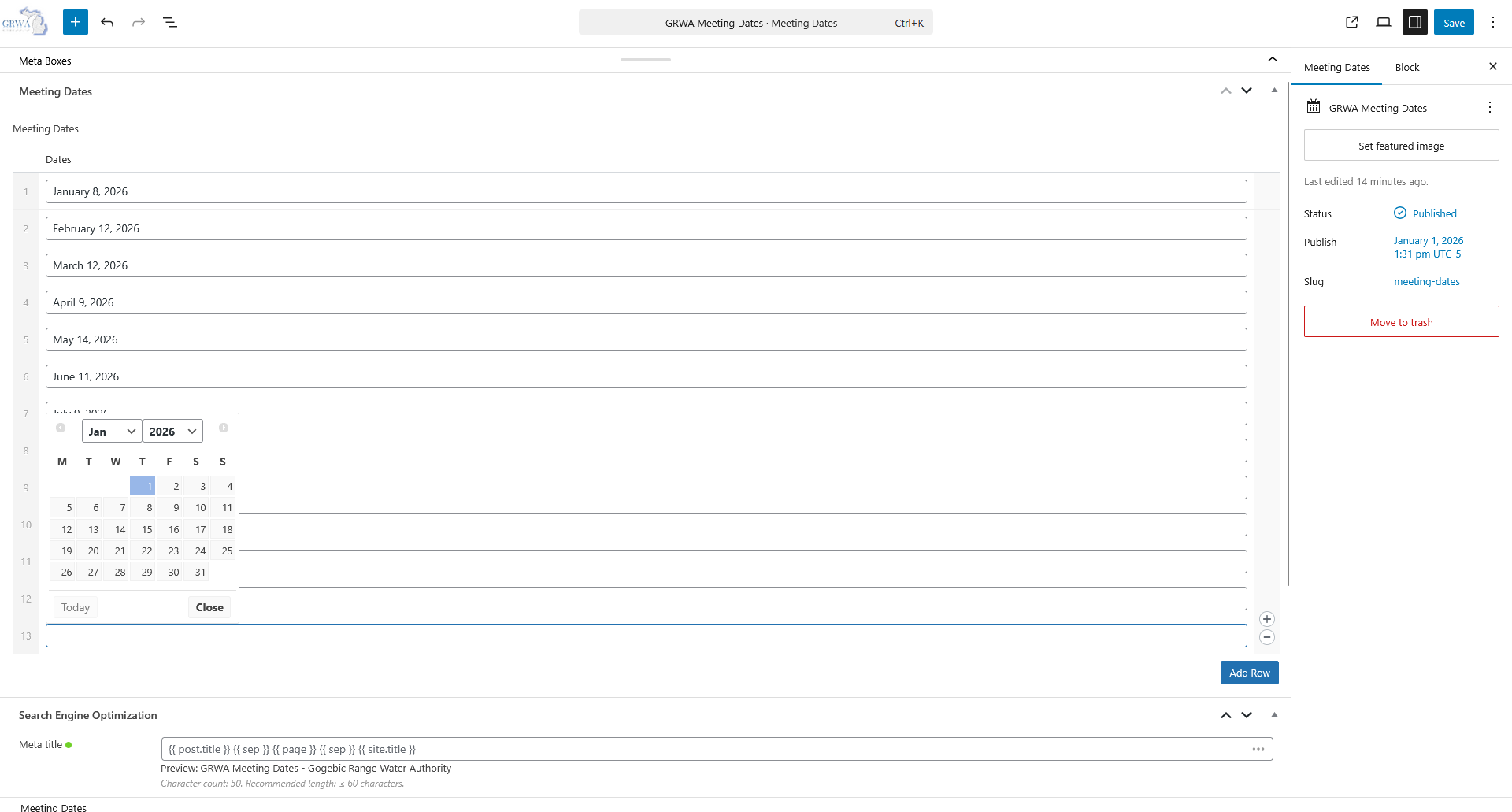
Step 5: Save New Date Changes
On the right-hand side of the editor, you’ll find the “Save” button to update the dates on the live site. The dates will automatically update on the site.
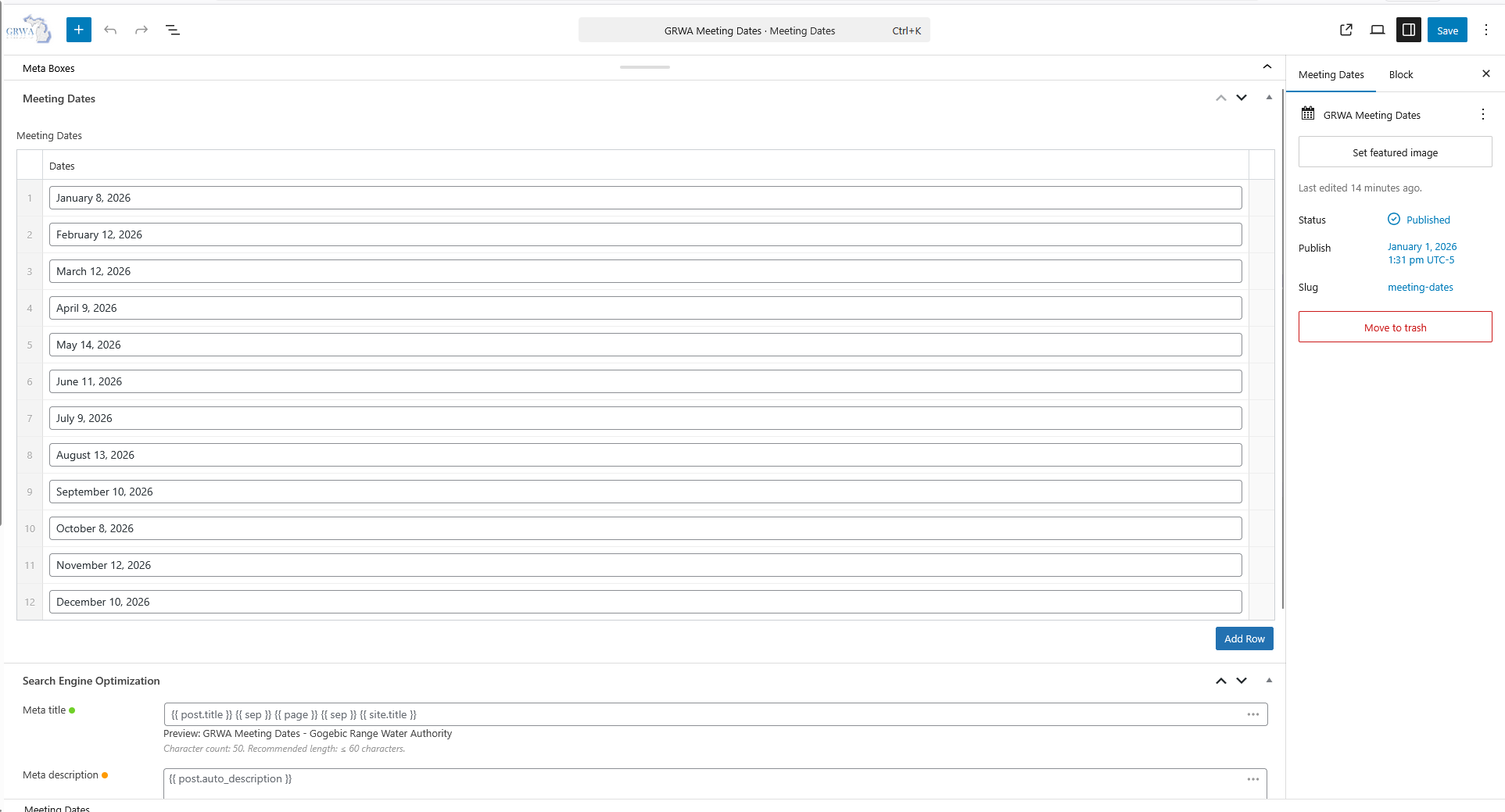
Step 6: Congratulations!
Your new meeting dates are now live on the site!
Add a New Page
Step 1: Access the Dashboard
Once logged in, you’ll be directed to the WordPress dashboard. This is the control center for managing your website.
Step 2: Navigate to the Page Section
On the left-hand side of the dashboard, locate and click on the “Pages” option.
Step 3: Click on "Add New"
Once you’ve clicked on “Pages,” a submenu will appear. Select “Add New” from this submenu.
Step 4: Enter Page Title and Content
You’ll now be taken to the page editor. Start by entering the title of your new page in the provided field at the top. Below the title, you can add your content using the visual editor. Write your page content, format text, add images, and make any necessary adjustments.
Step 5: Add Page Attributes (Optional)
On the right-hand side of the editor, you’ll find the “Page Attributes” section. Here, you can choose a parent page if your new page is a subpage of an existing page. You can also set the page template if your theme offers different templates.
Step 6: Set Featured Image
Below the page attributes section, you’ll see an option to set a featured image for your page. Click on “Set featured image” and upload/select an image from your media library.
Step 7: Publish Your Page
Once you’re satisfied with your page, click on the “Publish” button located on the right-hand side of the editor. If you’re not ready to publish immediately, you can schedule the page to be published at a later date/time using the “Publish” options.
Step 8: Congratulations!
Your new page is now live on your WordPress website.
Add Media
Step 1: Access the Dashboard
After logging in, you’ll be directed to the WordPress dashboard.
Step 2: Navigate to the Media Library
In the WordPress dashboard, navigate to “Media” in the left-hand sidebar. Click on “Media” to access the Media Library.
Step 3: Upload Media
Once in the Media Library, you’ll see an “Add New” button at the top of the page. Click on it to start the upload process. You can either drag and drop files into the upload area or click on the “Select Files” button to browse your computer and select the files you want to upload.
Step 4: Upload Media Files
After selecting the files you want to upload, WordPress will start uploading them to the media folder. You’ll see progress indicators for each file.
Step 5: View Uploaded Media
Once the upload is complete, you’ll see thumbnails of the uploaded media files in the Media Library. You can click on each file to view more details, such as the file name, file type, and dimensions.
Step 6: Use Media in Posts or Pages
Now that your media files are uploaded to the media folder, you can easily insert them into your posts or pages. When editing a post or page, click on the “Add Media” button above the content editor. You can then select the media file you want to insert from the Media Library.

Need help? Feel free to submit a ticket through our contact form for support.